Private Cloud Apps for Media and Downloads
Build a private cloud app stack for media libraries, downloads, file sync, browser file access, and remote storage without managing every service by hand.
Private Cloud Apps for Media and Downloads
A private cloud setup is most useful when it brings your files, media, downloads, and sync tools into one place.
That does not have to mean building a complex server stack from scratch. The better starting point is usually a set of focused apps that share storage cleanly: one app for file sync, one for browser file access, one for media playback, one for transfers or backups, and optional extra tools when the workflow grows.
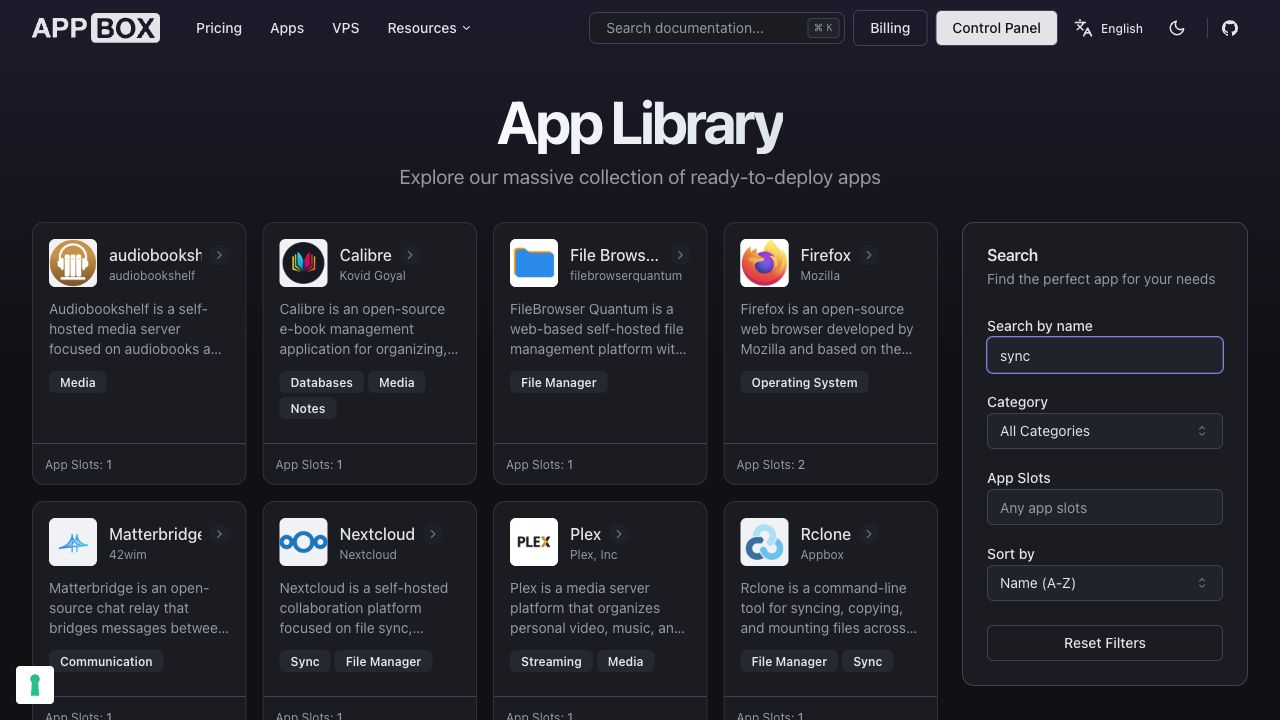
This guide walks through a practical Appbox setup for private cloud files, media libraries, and download workflows.
What a Private Cloud Setup Needs
The exact app list depends on your workflow, but most private cloud setups need a few layers:
- File sync and sharing.
- Browser-based file management.
- Secure file transfer access.
- Media library playback.
- Photo, video, music, or document organization.
- Backup, migration, or scheduled transfer tools.
- Optional machine-level control for custom scripts.
The useful thing about Appbox is that these can be separate apps without becoming separate islands. Hosted apps can share the same Appbox storage environment, and an Appbox VPS can access the same data through /APPBOX_DATA/ when you need full Linux control.
Start With File Sync
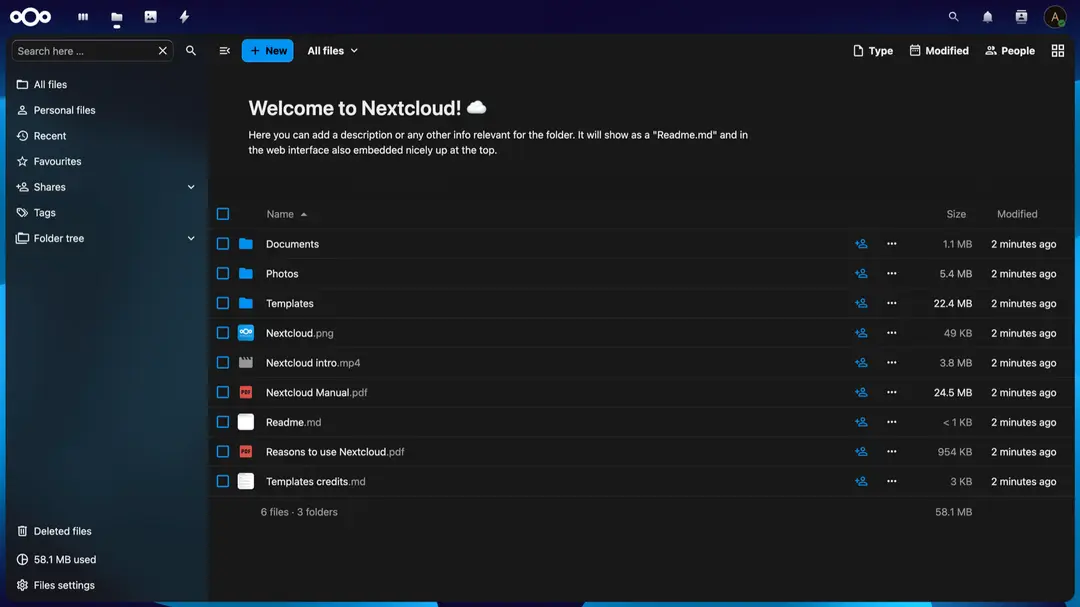
Nextcloud is the natural starting point for many private cloud setups. It gives you file sync clients, sharing controls, WebDAV access, and a familiar cloud-drive style workflow.
Use it when you want:
- Private file storage with desktop and mobile sync.
- Share links with passwords or expiration dates.
- A central place for documents, project files, and personal media.
- WebDAV compatibility for apps and desktop clients.
Nextcloud is not the only file app you might use, but it is often the one that makes the setup feel like a personal cloud rather than a loose collection of tools.
Add Browser File Access
File sync is useful, but sometimes you just need to open a browser and move files around.
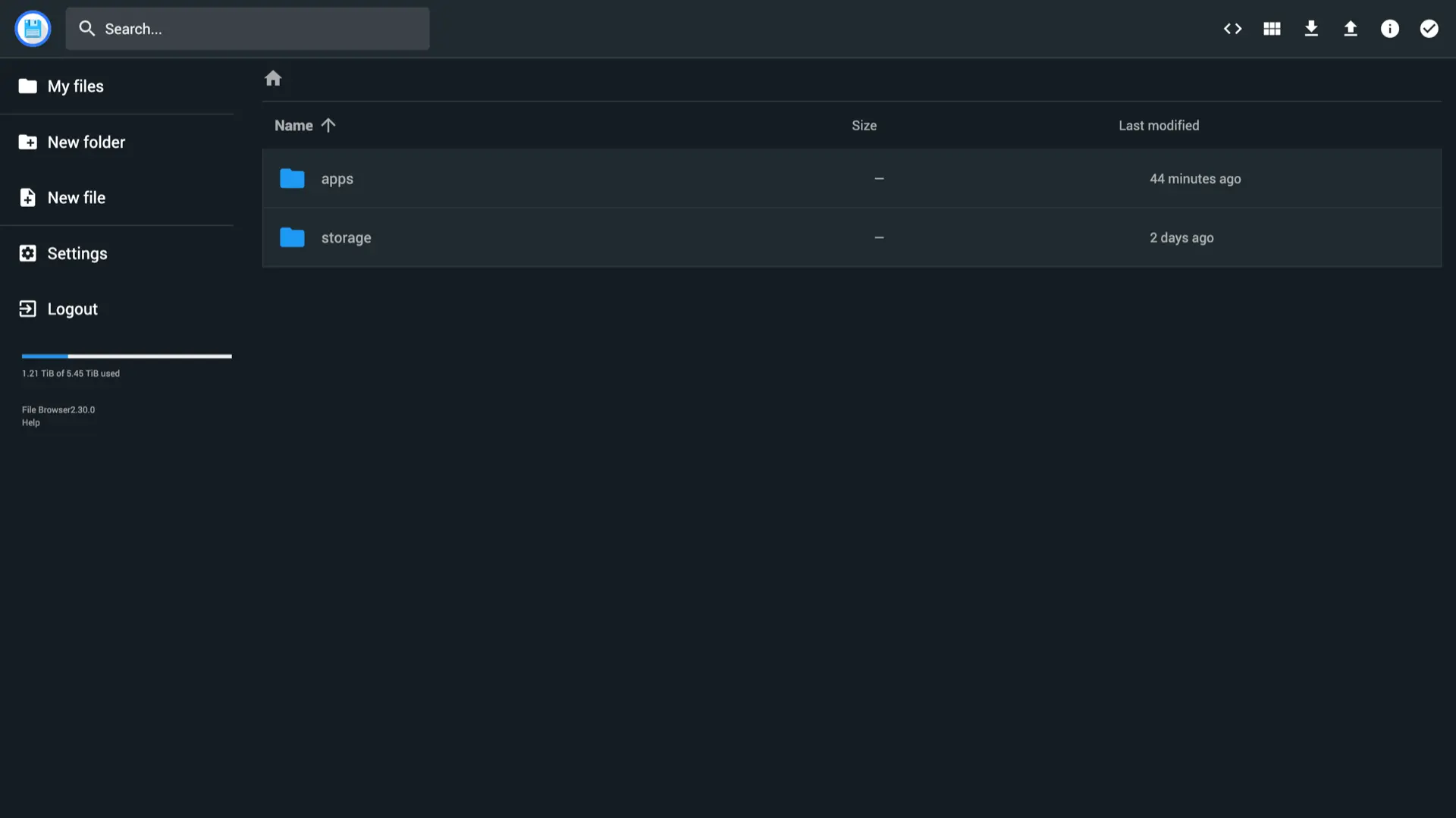
File Browser and File Browser Quantum & WebDAV cover that simple file-management need. They are useful for uploads, downloads, renames, folder cleanup, and quick checks from a machine where you do not want to configure a full sync client.
That browser layer becomes especially helpful when media and download folders grow. You can inspect the file structure, move completed files into library folders, or tidy up temporary storage without opening a terminal.
Add Transfer Tools for Bigger Workflows
Private cloud setups often need more than manual upload and download buttons.
SFTPGo is a strong fit when you need SFTP, FTP/S, HTTP/S, WebDAV, user controls, virtual folders, or policy-based access. It is useful when you want protocol-level file access rather than only a web UI.
Rclone is useful for copy, sync, migration, and backup-style workflows across cloud storage providers and remote filesystems.
Syncthing and Resilio Sync are useful when you want device-to-device sync without treating a third-party cloud drive as the center of the system.
For download workflows, keep the design simple and legitimate: store files you have the right to store and transfer, keep temporary folders separate from library folders, and use sync or backup tools deliberately rather than letting every app write everywhere.
Add Media Apps Around the Same Storage
Once your files are organized, media apps make the private cloud more useful.
Plex, Jellyfin, and Emby are the main media-server options for video, music, and photo libraries. Tautulli adds monitoring for Plex activity, stream details, and library usage.
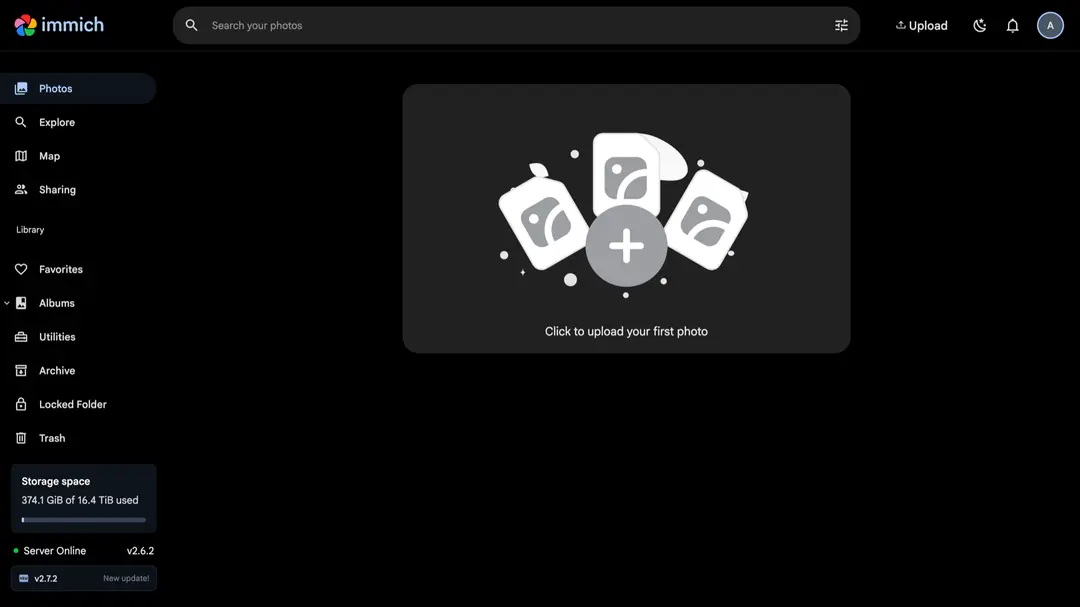
For more focused media libraries, Immich is useful for private photo and video management, Navidrome is useful for music streaming, audiobookshelf is useful for audiobooks and podcasts, and Calibre is useful for ebook libraries.
The important part is that media apps should point at a storage layout you understand. A private cloud setup gets easier to maintain when downloads, imports, libraries, and backups have clear folders and ownership.
Keep Downloads Separate From Libraries
One simple habit prevents a lot of cleanup later: keep incoming files separate from finished libraries.
For example:
/downloads/incoming/for new files./downloads/processing/for files being checked, renamed, or sorted./media/video/,/media/music/,/media/photos/, or/media/books/for finished libraries./backups/for snapshots, exports, or off-site copies.
That separation makes automation safer. A sync job can copy only finished files. A media server can scan only library folders. A cleanup task can remove temporary files without touching important data.
When a VPS Helps
Hosted apps cover the common workflow. A VPS helps when you need something custom:
- Scheduled scripts.
- Custom file-processing jobs.
- Development tools.
- One-off migrations.
- Package installs or command-line utilities.
- Automation that does not fit an app template.
An Ubuntu VPS on Appbox can access Appbox data under /APPBOX_DATA/, so it can work with the same files used by your hosted apps. That means you can keep Nextcloud, File Browser, Plex, Jellyfin, or Immich in the app flow while using a VPS for the odd jobs that need full machine control.
We covered this hybrid model in more detail in Hosted App Server vs VPS.
A Practical App Stack
For a balanced private cloud setup, start small:
- Nextcloud for sync, sharing, and personal cloud storage.
- File Browser or File Browser Quantum & WebDAV for browser file management.
- SFTPGo, Rclone, Syncthing, or Resilio Sync for transfers, migration, backup, or device sync.
- Plex, Jellyfin, or Emby for media playback.
- Immich, Navidrome, audiobookshelf, or Calibre if your library has a specific shape.
- Ubuntu VPS only when custom automation needs it.
That is enough to build a private cloud that handles files, media, downloads, and remote access without turning every step into manual server maintenance.
Build for Maintenance
The best private cloud app setup is not the one with the longest app list. It is the one you can understand, operate, and recover.
Start with a small app stack, keep folder boundaries clear, and add tools only when they solve a real workflow problem. Appbox gives you the app library, shared storage model, and optional VPS control so you can grow the setup without rebuilding the foundation each time.
Questions about private cloud apps on Appbox? Reach out at support@appbox.co or open a ticket at billing.appbox.co.