
Notebooks and kernels in the browser
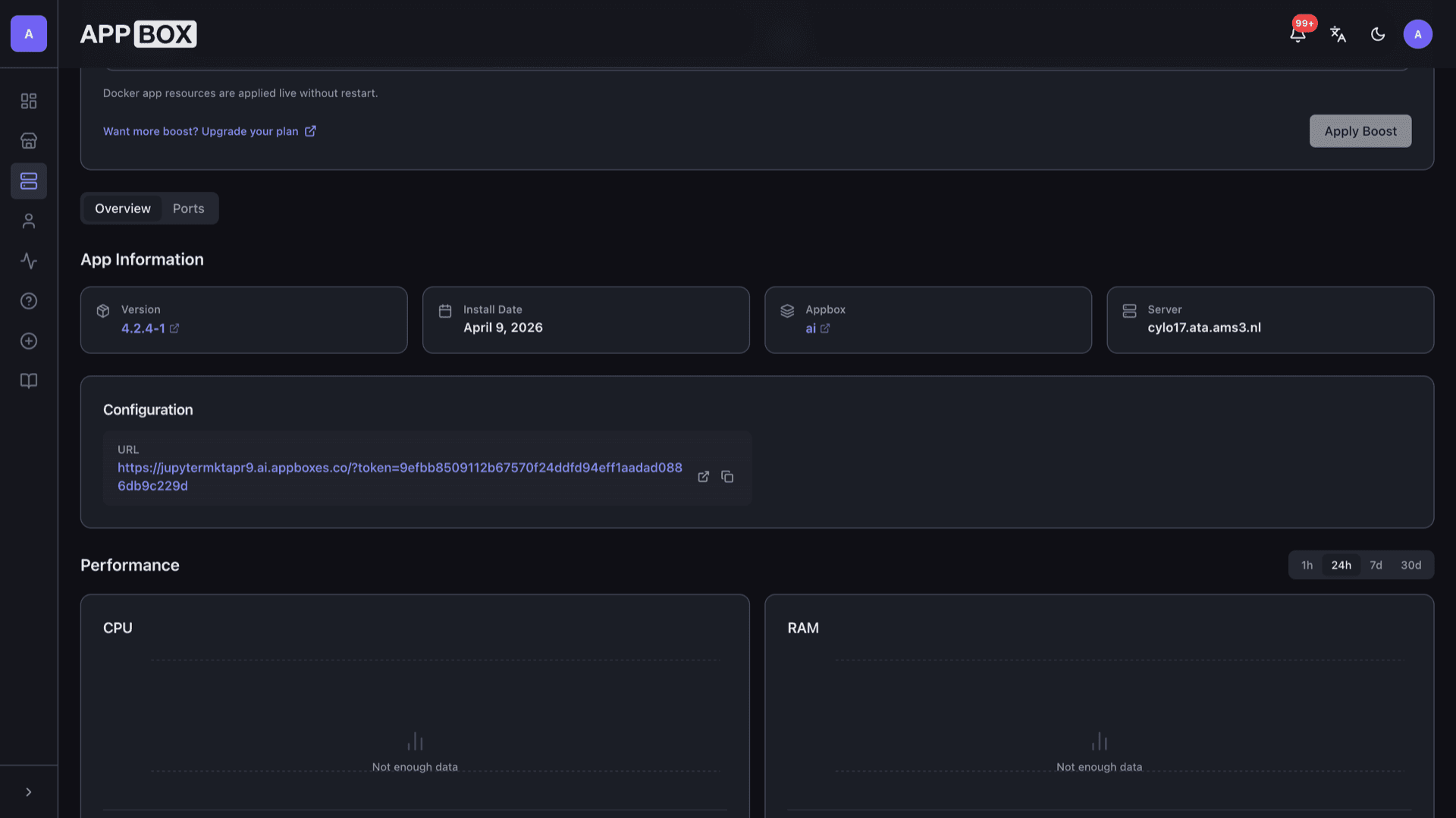
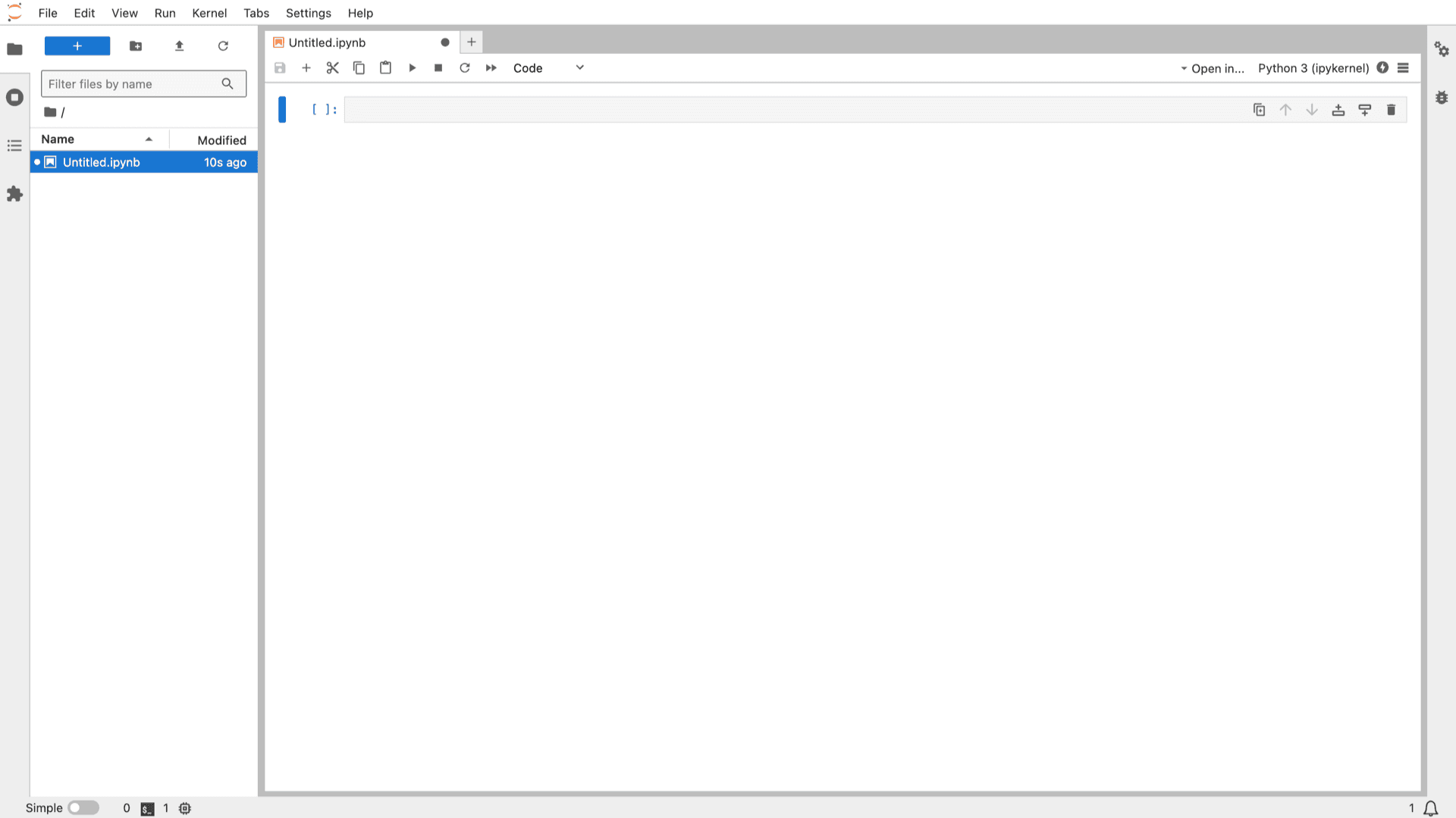
Jupyter Notebook hosting on Appbox. After install you get JupyterLab with file browser, Python notebooks, terminals, and the full URL plus token on your installed app Overview tab.
What you get with Jupyter hosting
A managed JupyterLab instance behind HTTPS, with resources and connection details shown in the panel.
JupyterLab workspace
Open the Web UI link from the Configuration section on Overview. The interface includes a launcher, file browser, and notebook editor with the Python 3 kernel ready to use.
Code and Markdown cells
Create notebooks that mix executable code, narrative Markdown, and math. Run cells inline and see outputs, plots, and errors next to the code.
Built-in terminal
Start a terminal from the launcher to use pip, venv, and shell workflows alongside your notebooks inside the same environment.
Tokenized URL
The panel lists a URL field with an access token. Copy or open it from Overview so you land in JupyterLab without a separate password step.
HTTPS on your hostname
Your subdomain resolves with TLS. Use the hostname shown in the panel when sharing links or connecting tools that support token URLs.
Kernels and files
Switch cell types, manage kernels from the status area, and keep notebooks and supporting files in the left-hand file browser.
Jupyter on Appbox
التثبيت خلال ثوانٍ
اختر Appbox الخاص بك، واملأ بضعة حقول، وسيصبح Jupyter Notebook متاحاً.
تثبيت Jupyter Notebook
يتطلب 1 App Slot
يعرض هذا العرض التوضيحي شكل المثبّت بعد أن يصبح لديك Appbox.
المضاعِف
1.4x
تكلفة Slot
5 / 21
RAM
8.40 GB
وحدات CPU
∞
✓ jupyter.steve.appboxes.co
جاهز للتثبيت؟ ستحتاج أولاً إلى Appbox نشط.
هذه معاينة لنموذج التثبيت. اختر خطة لإنشاء Appbox ونشر التطبيق فعلياً.
Workflows that fit notebooks
Teaching, analysis, and quick experiments on a single Appbox app.
Reproducible docs
Export or download notebooks when you need static copies. Pin dependencies with requirements files or venvs so reruns stay consistent.
Bring your data
Upload files from the file browser or pull data over HTTPS inside notebook code, keeping datasets next to your notebooks in the workspace.
Resource headroom
Heavy plotting or long-running cells benefit from the RAM and CPU shown in the versions table. Add Per-App Boost from the installed app page when you need more.
Third-party extensions
JupyterLab can load community extensions. Treat them like any other dependency: install only what you trust, and review upstream guidance before enabling new plugins.
Self-hosted Jupyter vs Google Colab
| Feature | Jupyter on Appbox | Google Colab |
|---|---|---|
| Where data lives | On your Appbox instance and volumes | Google-managed runtime and Drive integration |
| Session limits | Runs while your app runs; you control stop and restart | Free tier timeouts and usage caps |
| GPU by default | CPU-focused Appbox plans unless your stack adds GPU elsewhere | Paid tiers and notebooks may offer GPU runtimes |
| Custom system packages | Shell and pip inside your container as allowed by the image | Limited to what the hosted runtime exposes |
| HTTPS URL | Your subdomain on Appbox | colab.research.google.com or linked Drive flow |
| Cost model | App Slots and plan on Appbox | Free and paid Colab plans from Google |
Save your access URL
Frequently asked questions
Start coding in Jupyter
Deploy Jupyter Notebook hosting on Appbox in one click, open JupyterLab, and iterate in notebooks on your own HTTPS URL.
Available versions
| Version | App Slots | RAM | CPU | Released | Changes |
|---|---|---|---|---|---|
| 4.2.4-1 | 1 | 6 GB | Shared | Aug 1, 2024 |
Need more resources? Use Per-App Boost to allocate extra App Slots and increase RAM and CPU by 10% per slot. See the FAQ below for details.