
Video conferencing you host
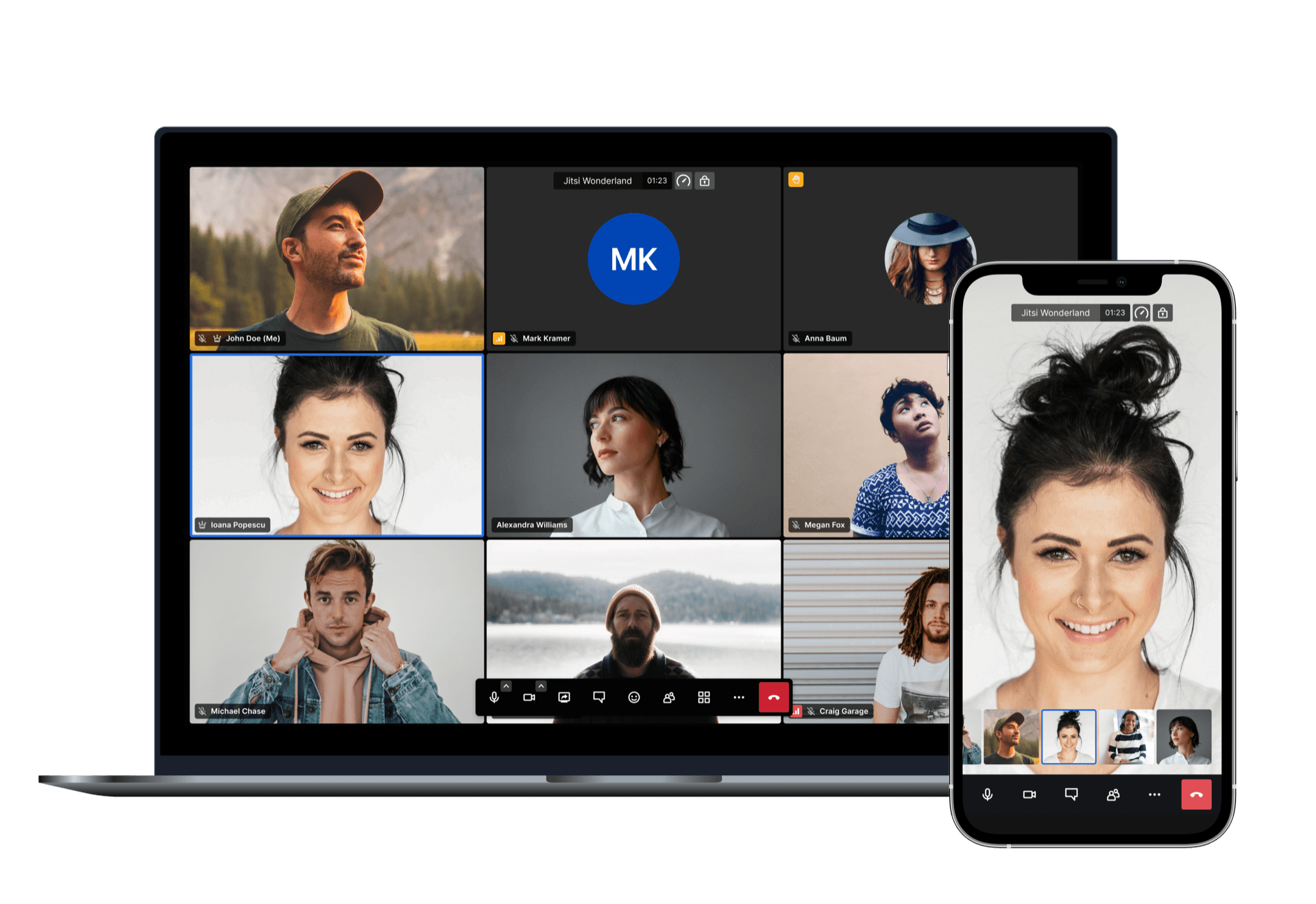
Jitsi hosting on Appbox runs the familiar Jitsi Meet web client on your subdomain with TLS terminated by the platform, so guests join in the browser without a separate download.
What you get with Jitsi hosting
Meetings, moderation, and collaboration features from the upstream Jitsi stack, packaged as a single Appbox app with persistent data.
Browser-first meetings
Participants join from Chrome, Firefox, Safari, or Edge using the room link you share. The Web UI field on your installed app page opens your instance.
Screen sharing
Present a window or full screen during a call so demos, standups, and support sessions stay inside the same meeting flow.
Rooms and presence
Create named rooms, see who is connected, and use tile view or filmstrip layouts depending on how many people are on camera.
Lobby and passwords
Use lobby mode, room passwords, and moderator controls from the security settings when you need tighter access than a public link.
Your hostname
The install form sets PUBLIC_URL on your Appbox domain so bookmarks, invites, and reverse proxy routing line up with how visitors reach Meet.
HTTPS on Appbox
The platform serves your site over TLS. You open Meet using the HTTPS URL shown on the installed app page instead of terminating certificates yourself.
See Jitsi on Appbox
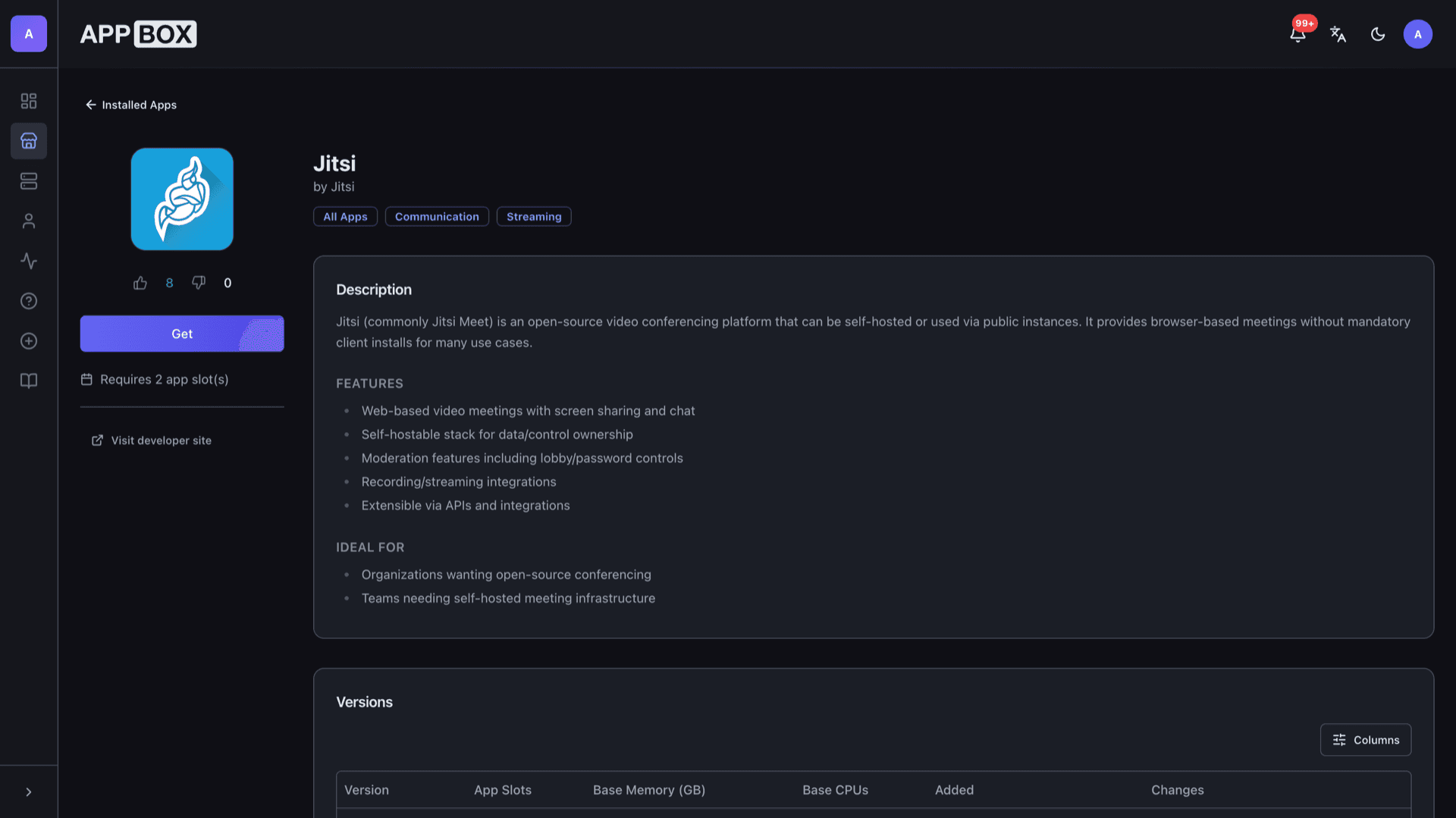

التثبيت خلال ثوانٍ
اختر Appbox الخاص بك، واملأ بضعة حقول، وسيصبح Jitsi متاحاً.
تثبيت Jitsi
يتطلب 2 من App Slots
يعرض هذا العرض التوضيحي شكل المثبّت بعد أن يصبح لديك Appbox.
المضاعِف
1.4x
تكلفة Slot
6 / 21
RAM
5.60 GB
وحدات CPU
∞
✓ jitsi.steve.appboxes.co
جاهز للتثبيت؟ ستحتاج أولاً إلى Appbox نشط.
هذه معاينة لنموذج التثبيت. اختر خطة لإنشاء Appbox ونشر التطبيق فعلياً.
Operations and integrations
How teams typically run Jitsi alongside the rest of their stack.
Admin credentials
The username and password you enter at install time are used for the XMPP admin path on your instance. Store them like any other production secret and rotate if your policy requires it.
Recording and live streaming
Jitsi supports Jibri-style recording and streaming when those components are available in the deployment. Check your installed version notes for what this image exposes on Appbox.
Firewall and ports
WebRTC needs UDP media paths in addition to HTTPS. Use the Ports tab on the installed app page if your network team asks which external ports map to the container.
Mobile clients
Guests can use the official Jitsi mobile apps against your PUBLIC_URL when DNS and certificates resolve the same hostname they use in the browser.
Self-hosted Jitsi vs Zoom Meetings
| Feature | Jitsi on Appbox | Zoom Meetings (vendor cloud) |
|---|---|---|
| Data residency | Runs on your Appbox instance | Zoom cloud and policies |
| Pricing model | App Slots and Boost on your plan | Per-host licensing and plans |
| Client install | Browser-first, optional mobile apps | Browser and desktop clients |
| Customization | Full control of deployment and branding options the image exposes | Limited to Zoom admin settings |
| Operational load | You operate the app; Appbox handles container lifecycle | Vendor operates the service |
| Ecosystem size | Jitsi ecosystem and plugins | Large third-party Zoom marketplace |
Match PUBLIC_URL to your domain
Frequently asked questions
Start hosting Jitsi Meet
Deploy Jitsi on Appbox, set PUBLIC_URL and admin credentials, then open your Web UI and create the first room.
Available versions
| Version | App Slots | RAM | CPU | Released | Changes |
|---|---|---|---|---|---|
| 1.0.8936-1 | 2 | 4 GB | Shared | Dec 23, 2025 |
Need more resources? Use Per-App Boost to allocate extra App Slots and increase RAM and CPU by 10% per slot. See the FAQ below for details.
Jitsi
بواسطة Jitsi