App Boost
Give one app more memory and CPU by spending spare app slots, without changing your plan.
⚠️ ఈ కంటెంట్ ఇంకా మీ భాషలో అందుబాటులో లేదు.
Every app starts with its own share of memory (RAM) and CPU. App Boost raises that share for one app at a time. You pay for it with app slots from your plan that you aren't using, so a busy app can get more room without a plan change.
How boost works
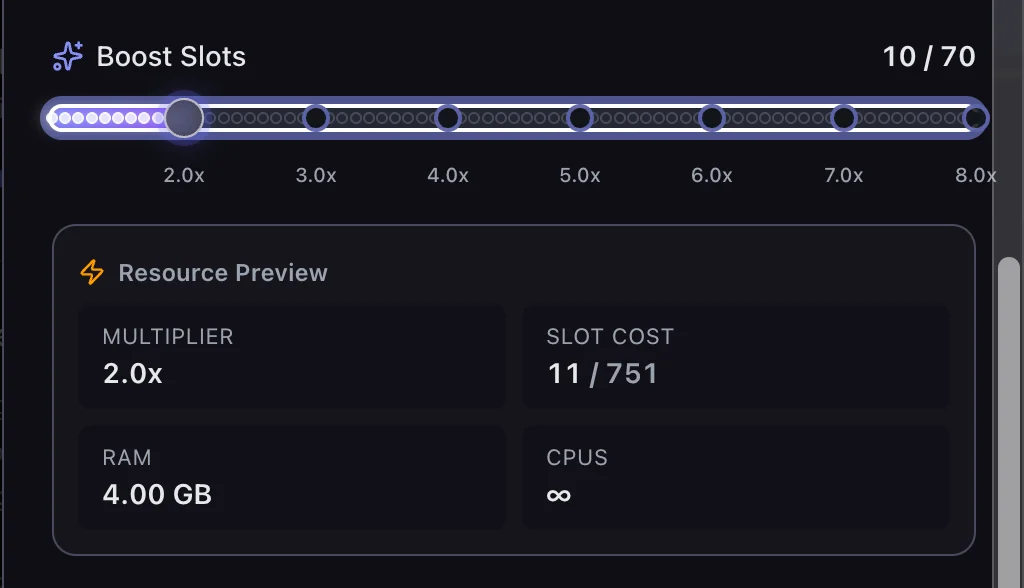
- Each boost slot adds 0.1× to the app's resources, so 10 boost slots double its RAM and CPU (2.0×).
- An app can go up to 8.0×, which takes 70 boost slots.
- A boosted app uses its own app slots plus its boost slots. An app that needs 1 slot uses 11 with 10 boost slots.
- Boost slots come from your Appbox's free app slots, so the slider stops at the number you have free.
The Resource Preview shows the result before you commit to it:
| Tile | What it shows |
|---|---|
| Multiplier | How many times the app's starting resources it gets |
| Slot Cost | The app's slots plus its boost slots. In the install dialog it also shows your free slots. |
| RAM | The app's memory after the boost |
| CPUs | The app's CPU limit after the boost. ∞ means the app has no CPU limit. |
Boost an app when you install it
- Open the app in the App Store and select Get.
- Choose your Appbox.
- Drag the Boost Slots slider. You can also select the slider and use the arrow keys to move one slot at a time.
- Check the Resource Preview, fill in the rest of the dialog and select Install.
Change the boost on an installed app
- Go to Appboxes > Installed Apps and open the app.
- In the App Boost card, drag the slider to the boost you want.
- Select Apply Boost.
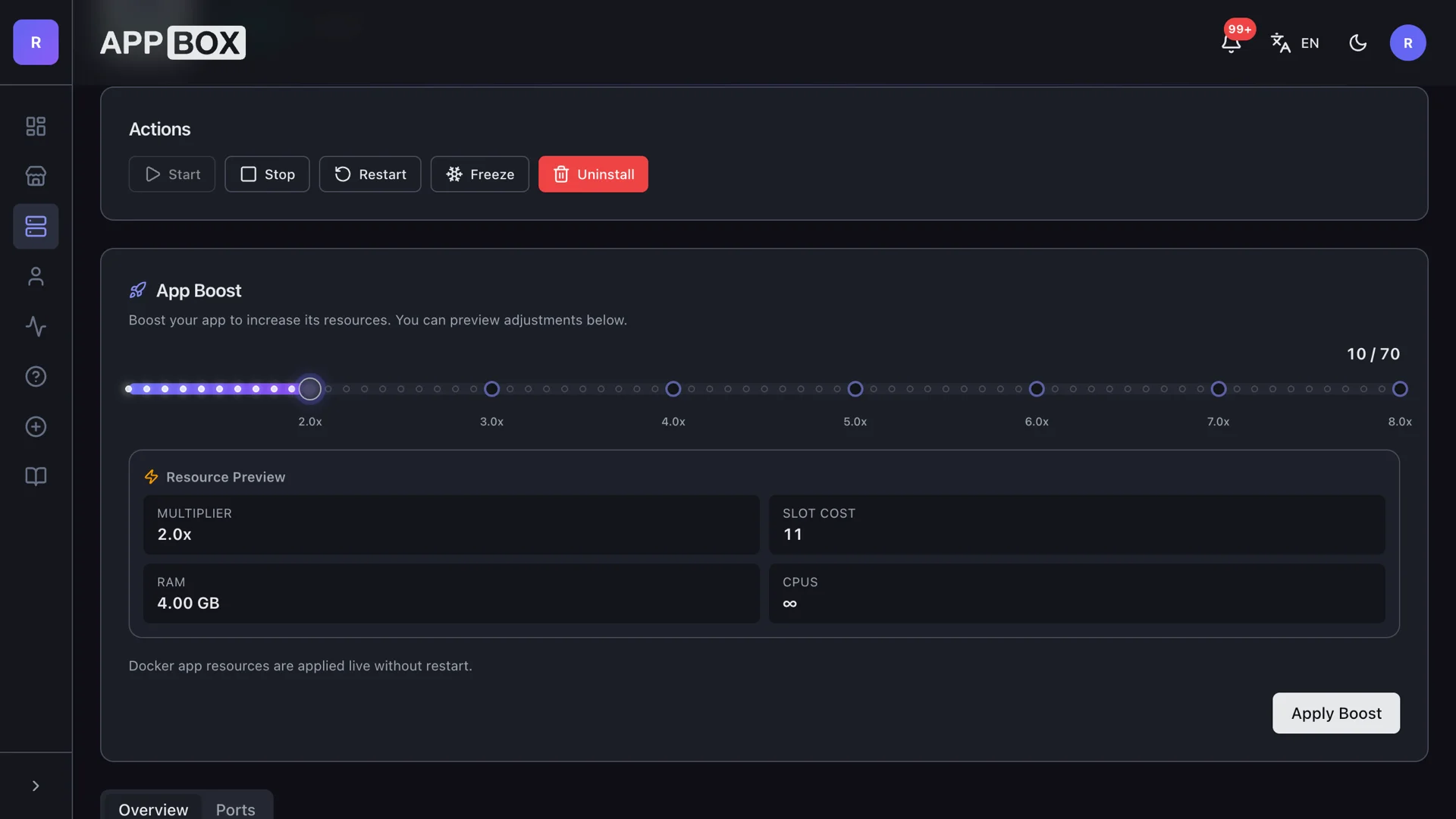
Docker apps get the new resources straight away and keep running. A VPS has to restart before it uses them.
To remove a boost, drag the slider back to 0 and select Apply Boost. The boost slots go back to your free slots.
Troubleshooting
| What you see | What to check |
|---|---|
| The app has no App Boost card | Apps installed before App Boost launched use an older resource system and can't be boosted. A new install can be, but uninstalling the old one deletes its data. |
| The slider is greyed out | The app has to be running. You can't change its boost while it's installing, updating, stopped or frozen. |
| The slider stops before 70 | Your Appbox doesn't have that many free app slots. Free some by uninstalling or freezing apps you don't use, or select Want more boost? Upgrade your plan. |